If you only have 25 minutes
Unique password on your email account
App-based two-step sign-in on email and bank
Location set to "while using" on every app
The six-step data protection checklist
Work top to bottom. Each step closes a specific way personal data leaks in the real world.
Put every password behind one manager
Install a password manager, import the passwords your browser already saved, then let it generate new ones. Start with the four accounts that can reset everything else: email, phone carrier, bank, and your main social account.
- Change your email password first — it unlocks every other reset link
- Use a long passphrase for the manager itself and write it down offline
- Delete saved passwords from the browser once they are imported
Turn on two-step sign-in with an app, not SMS
SMS codes can be stolen by moving your number to another SIM. An authenticator app on your phone cannot be redirected that way. Save the backup codes each site shows you.
- Enable it on email, banking, and cloud storage before anything else
- Store backup codes in the password manager, not in your inbox
- Add a SIM or port-out PIN with your mobile provider
Stop leaking your real email and number
Most exposure starts with a signup form. Use one email for people and money, a second for shops, newsletters, and apps. Many providers let you create aliases that forward to the same inbox.
- Never use your bank email address to sign up for stores or apps
- Skip optional fields — birthday and phone number are usually optional
- Check whether your addresses appear in known breach lists
Shrink what your devices broadcast
Phones and browsers share more than most people expect. A short settings pass removes the easiest tracking without changing how you use anything.
- Set location to "while using" for every app that does not need maps
- Turn off ad personalisation and reset your advertising ID
- Remove browser extensions you cannot name a reason for
- Update the operating system and browser — most attacks reuse old holes
Remove yourself from data brokers
Data brokers publish your address, relatives, and phone number for anyone to buy. Each one has an opt-out page, and the work is repetitive rather than difficult. Search your own name in quotes to find which sites list you, then submit removals one by one.
- Keep a simple list: site, date requested, date confirmed
- Use a dedicated alias email for opt-out forms
- Recheck every three to six months — listings come back
Make recovery boring
Protection fails quietly when a device is lost or an account is locked. Decide now how you get back in, and how someone you trust can reach your essentials if you cannot.
- Turn on device encryption and a screen lock on phone and laptop
- Keep one offline backup of documents you cannot re-create
- Review the recovery email and phone on your main accounts
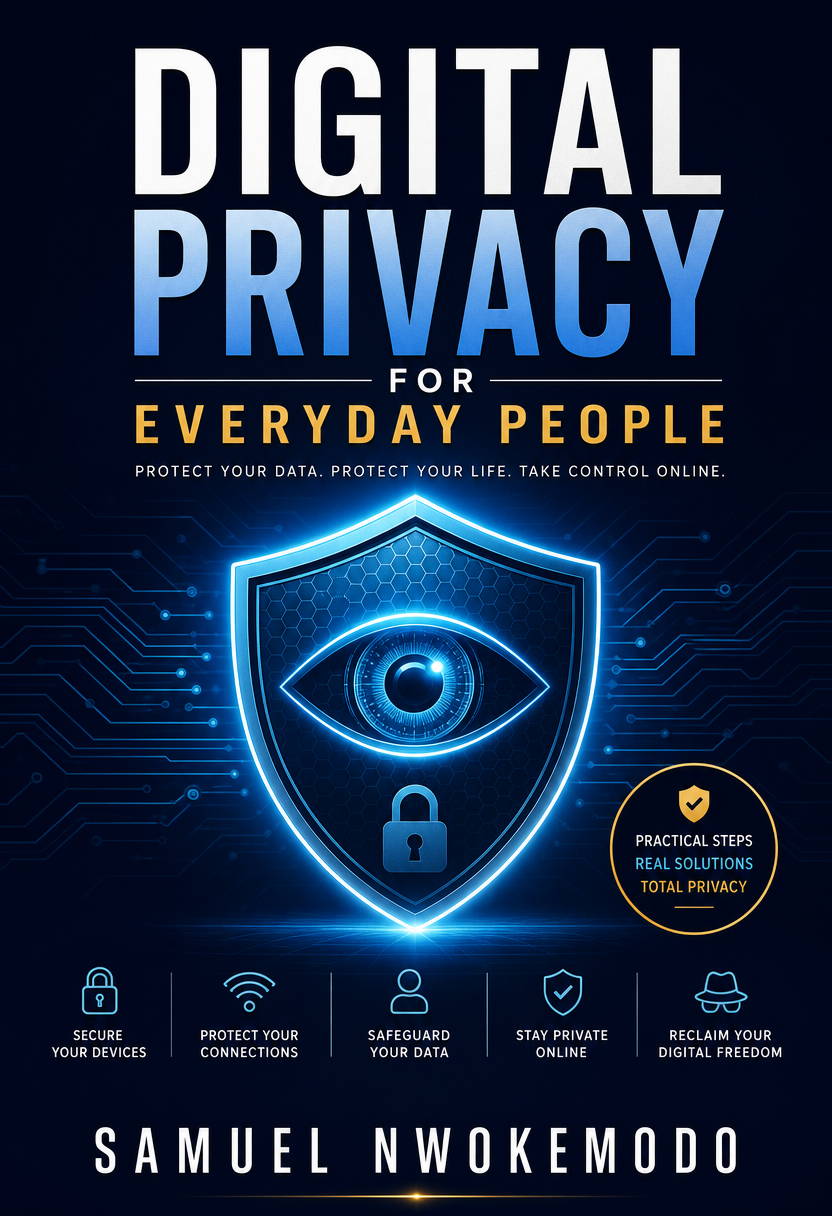
Want the long version, with the screens and scripts?
Digital Privacy for Everyday People walks through each step above with the actual settings, opt-out templates for data brokers, and a recheck routine you can follow every few months. If you would rather build the skills hands-on, the Cyber Lab Master Guide covers the defender side.